
Key takeaways
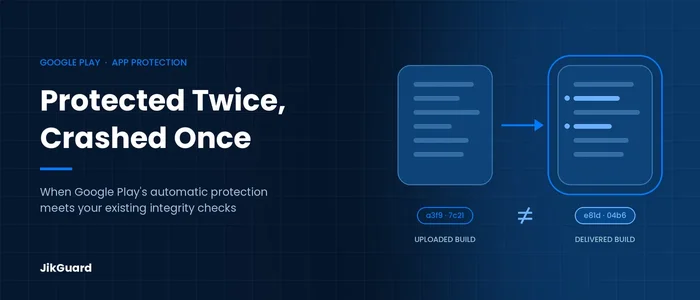
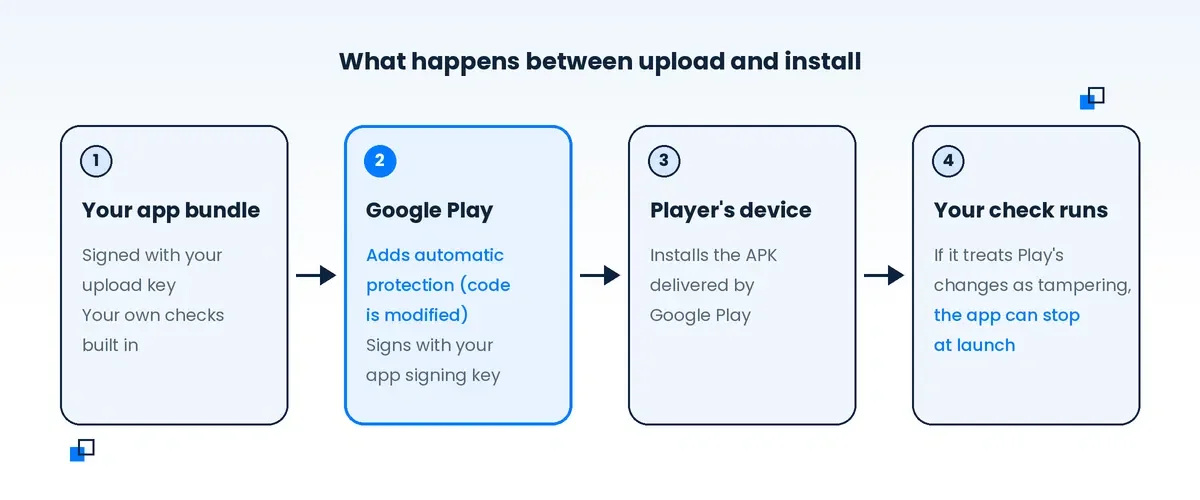
- Google Play's automatic protection changes your app's code after you upload it, then signs the result with your app signing key.
- If your build already checks its own integrity or signature, through your own code or a third-party protection tool, those checks can treat Play's changes as tampering and stop the game at launch.
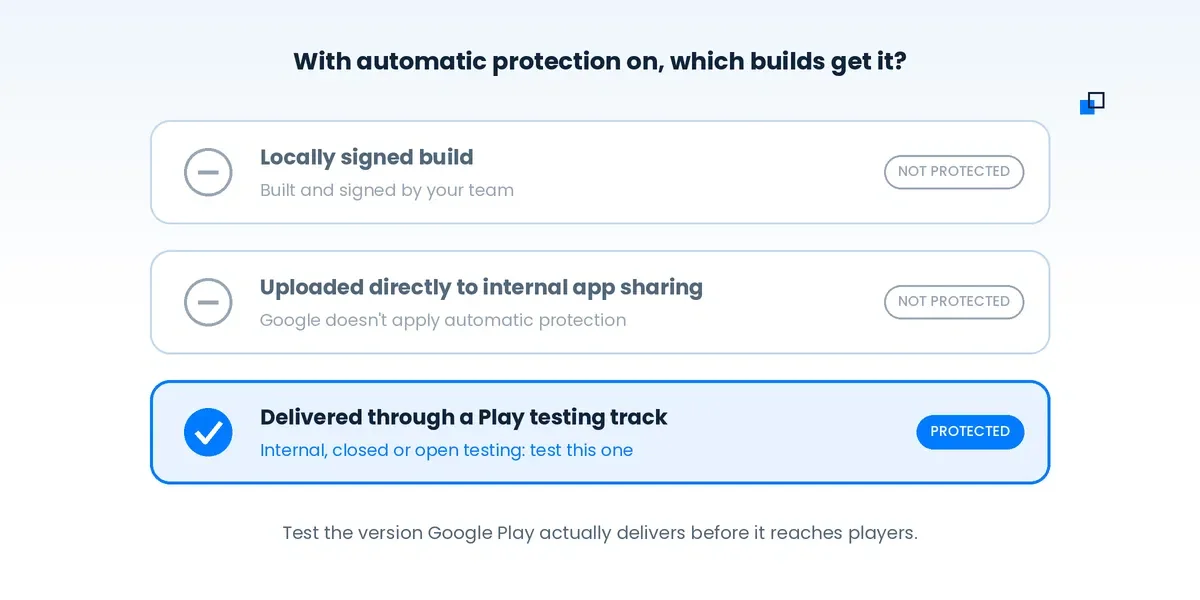
- Builds uploaded through internal app sharing don't get automatic protection. If you only test local builds or builds uploaded directly to internal app sharing, and not the builds Google Play delivers through a testing track, you can miss the problem.
- Test the exact build Google Play delivers, and decide on purpose which protection layer your game relies on.
When Google explains how to test an app that uses its automatic protection, the first thing it asks you to check is the game's launch: look for crash-on-launch and slower startup. There is a reason for that. Automatic protection changes your app after you upload it, and Google's own documentation says it may not be compatible with other runtime anti-tamper solutions, and that using them together can cause problems for users.
This post explains what automatic protection does to your app, why it can clash with existing protection, and how to work out whether it's the cause.
What automatic protection does
Automatic protection is a Play Console feature that helps fight unauthorized redistribution and piracy. Older Google documentation calls it automatic integrity protection, so you may see both names. Depending on your app's eligibility, it can add three kinds of checks:
- Installer check: When the app opens, it checks whether it was installed by Google Play. If not, the user is asked to get the app from Google Play.
- Anti-tamper protection: Runtime checks that detect modification, protected with obfuscation so they're hard to remove. If a check fails, the user is sent to Google Play or the app won't run. This is only available to select Play partners.
- Device check: Checks that the app is running on a certified Android device. This is also limited to select partners and requires anti-tamper protection.
To add these checks, Google Play has to edit your app. That's why the feature requires Play App Signing and Android App Bundles: Google builds modified APKs from your bundle and signs them on your behalf. For the same reason, automatic protection can't be used with code transparency for app bundles.
The important point is that the APK a player installs from Google Play is not byte-for-byte the build you uploaded.
Why it can conflict with existing protection
Many games already protect themselves before they reach Google Play. A studio might add its own signature checks, or run the build through a third-party protection tool that encrypts code and verifies that executable files haven't been changed.
Those checks are designed to notice when the app has changed since it was built. Google Play's processing is also a change after the build, so a check that can't tell the two apart may react to it the same way. There are two common places this shows up:
- Integrity checks. A check that verifies the app's code still matches what was built can fail once Play has modified that code.
- Signature checks. With Play App Signing, the APKs users install from Google Play are signed with your app signing key. Google recommends using a separate upload key, and if your upload key and app signing key use different certificates, a check that expects the upload key certificate can fail on Play installs. This can happen even with automatic protection turned off.
When a check like this fails, the protection treats the app as tampered with and stops it, which players often see as a crash during startup. Google notes that its own anti-tamper checks also stop a modified app mainly by crashing it.
What it means for game teams
This kind of problem slips through testing easily. According to Google, apps uploaded through internal app sharing don't receive automatic protection. If your team only tests locally signed builds or builds uploaded directly to internal app sharing, and never installs a build delivered through a Play testing track, the problem can be missed before release.
Turning protection off is not a free fix either. Google recommends that you don't promote unprotected versions to open tracks or production, and notes that publishing unprotected versions there means anti-tamper protection no longer works. Whichever way you go, it should be a deliberate choice for each release.
How to diagnose and fix it
Step 1: Find out where the crashes come from
Check whether the crashes affect Google Play installs, other installs, or both. Android vitals stability metrics only count crashes attributed to Google Play. In tools like Crashlytics, you can filter by installer package; Google Play's is com.android.vending.
Step 2: Check whether the release was protected
In Play Console, look at the automatic protection setting for the affected release. If it was on, and your build also includes integrity or signature checks, treat automatic protection as the first suspect.
Step 3: Reproduce with the build Play actually delivers
Publish the same bundle to a Play testing track, such as internal or closed testing, and install it from Google Play on a test device. Don't rely on builds uploaded directly to internal app sharing; Google doesn't apply automatic protection to those uploads. Test a version delivered through a Play testing track instead.
Step 4: Compare protected and unprotected versions
Google lets you get unprotected Play-signed APKs, either through the Play Developer API or by creating a test release with protection turned off and downloading the APKs from that bundle's Downloads tab in Play Console. If the unprotected Play-signed version runs and the protected one crashes, that's a strong sign of a conflict with automatic protection, though not proof on its own. Check the crash logs from the protected build to confirm what is stopping the app, and after any change, test the protected version again on a testing track.
Step 5: Check your signing setup
If the unprotected Play-signed version also crashes, look at signature verification. If your upload key and app signing key are different, make sure any check in your build, or in your protection tool's configuration, uses the app signing key certificate from Play Console rather than your upload key.
Step 6: Decide how to ship
You can turn off automatic protection for a single release in the app bundle enhancements section when preparing the release. Note that this only applies to that release. Google applies protection again the next time you upload, so check the setting on every release. You can review the feature's settings in Play Console under Test and release > App integrity.
A quick way to read the results:
| What you see | Possible cause | Next step |
|---|---|---|
| Crashes only on Play installs, and only on protected releases | Possibly a conflict between automatic protection and checks in your build | Confirm with crash logs, then turn off protection for the release or adjust and retest the protected version on a testing track |
| Crashes on Play installs, protected or not | Possibly a signature check that expects the upload key certificate, when it differs from the app signing key | Compare the two certificates in Play Console and check which one your build verifies against |
| Crashes on Play installs and locally signed builds | A regular bug in the release | Debug as usual; Play processing is unlikely to be the cause |
| A rise in crashes from installs outside Google Play | Protection stopping modified or redistributed copies | Usually expected; confirm the crashes aren't hitting Play installs |
Where JikGuard fits
JikGuard protects Android games built with Unity, Cocos and Unreal Engine. Protection is applied to your APK or AAB at build time, before you upload anything to Google Play. You then continue with the protected output in your own signing, verification, testing and release workflow, and your signing keys stay with your team.
If you use Google Play App Signing, JikGuard uses the SHA-256 fingerprint of the App signing key certificate where the protection workflow requires it. You copy it from Play Console; you don't need to provide the certificate file, your keystore or your private key. This is the same distinction between the upload key and the app signing key described in step 5. The Google Play App Signing guide shows where to find the fingerprint.
Google advises testing thoroughly whenever automatic protection is combined with other runtime anti-tamper solutions. Teams using JikGuard should do the same: if you plan to turn on automatic protection, test the build Google Play delivers through a testing track before rolling it out, and contact our support team if you see unexpected behavior.
Client-side protection also doesn't replace server-side checks. Purchases, rewards and other important results should still be validated on your servers.
Summary
Automatic protection works by changing your app after upload, and any protection that watches for changes may see that as an attack. If a release crashes only for Play installs, check automatic protection and your signing setup first, and always test the build Google Play actually delivers before it reaches players.
To learn more about JikGuard, see Game Code & Asset Protection, Anti-Cheat & Anti-Hack, or the FAQ.