
iOS Protection User Guide
Set up the JikGuard tool on macOS, configure your Game Key, protect an Xcode project or workspace, and test the protected archive.
Before you start
Prepare your macOS build environment and tool files before protecting a project.
Tool package
Extract the JikGuard ZIP package to a directory and open Terminal in that directory. See Downloads for tool package information.
Xcode Command Line Tools
In Terminal, enter the following command and press Return (Enter) to check the active developer directory:
xcode-select -pFor the Xcode installation shown here, the expected output is /Applications/Xcode.app/Contents/Developer. The following screenshot shows the command, output, and returned prompt.

If the command-line tools are not installed, run the following command to install them:
xcode-select --installOnce the tools are installed, select the Xcode developer directory for the installation shown below:
sudo xcode-select -s /Applications/Xcode.app/Contents/DeveloperRun xcode-select -p again and press Return to check the selected directory.
The JikGuard tool also checks the environment automatically.
System Integrity Protection (SIP)
The documented tool setup requires System Integrity Protection (SIP) to be disabled on the build Mac. Disabling SIP reduces macOS security protections. Use an authorized, dedicated build environment and follow your organization's security policy.
Enter the following command in Terminal and press Return to check the current SIP status:
csrutil statusWhen SIP is enabled, enter macOS Recovery using the startup procedure for your Mac:
- On an Intel-based Mac, restart and hold Command + R.
- On an Apple silicon Mac, shut down, then hold the power button until startup options appear. Select Options and continue.
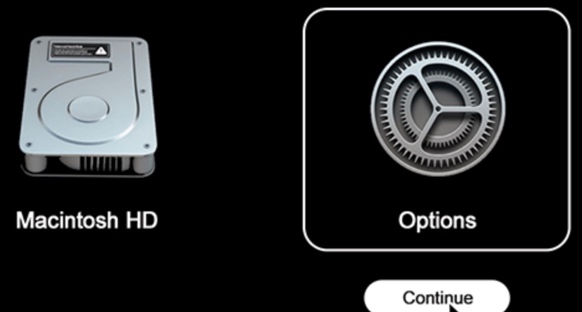
In macOS Recovery, choose Utilities > Terminal.
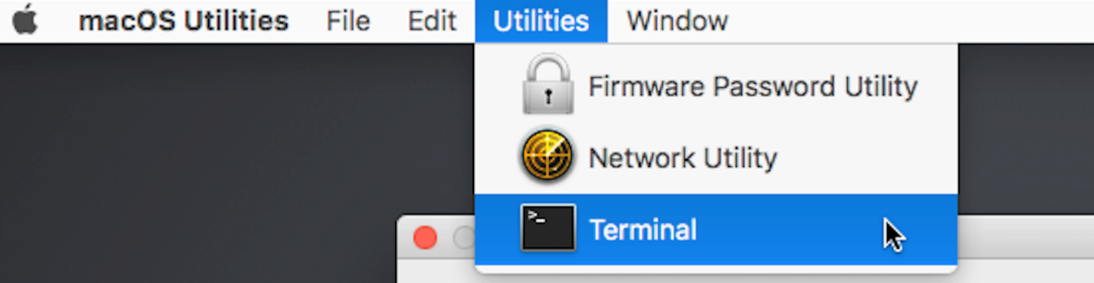
Enter the following command and press Return:
csrutil disable; rebootAfter the restart, run csrutil status again to verify that SIP is disabled.
Bitcode settings
In Xcode, open Build Settings and set Enable Bitcode to No where this setting is available. For CocoaPods projects, apply the same setting to all targets where available.

Configure the Protection Tool
Enter the Game Key supplied by JikGuard before running protection.
Game Key file
Open the gamekey file inside JikGuardSdk/config/ and paste your Game Key into it.
JikGuardSdk/config/gamekey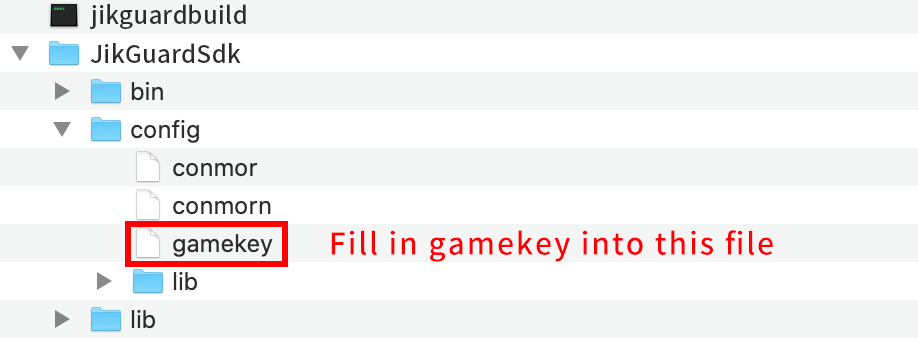
Use your own project key. Do not share the contents of this file.
Protect an Xcode project or workspace
In Terminal, change to the extracted tool directory. Replace the example path with the full path to your project or workspace, then run the applicable command and press Return.
Xcode project
./jikguardbuild -p /path/to/Demo/Unity-iPhone.xcodeprojCocoaPods workspace
./jikguardbuild -p /path/to/Demo/Unity-iPhone.xcworkspace| Option | Usage |
|---|---|
-p, --project=<str> | Full path to the .xcodeproj file, or the .xcworkspace file for a CocoaPods project. |
Each protection run generates a protected archive for App Store submission or local testing. The original project file is not modified, and later ordinary Xcode builds still generate unprotected archives.
Test the protected archive
Install the app from the protected archive on a connected iPhone for local testing.
Locate the app
Right-click the protected archive and choose Show Package Contents. Find the .app file under Products/Applications/.
Connect your iPhone
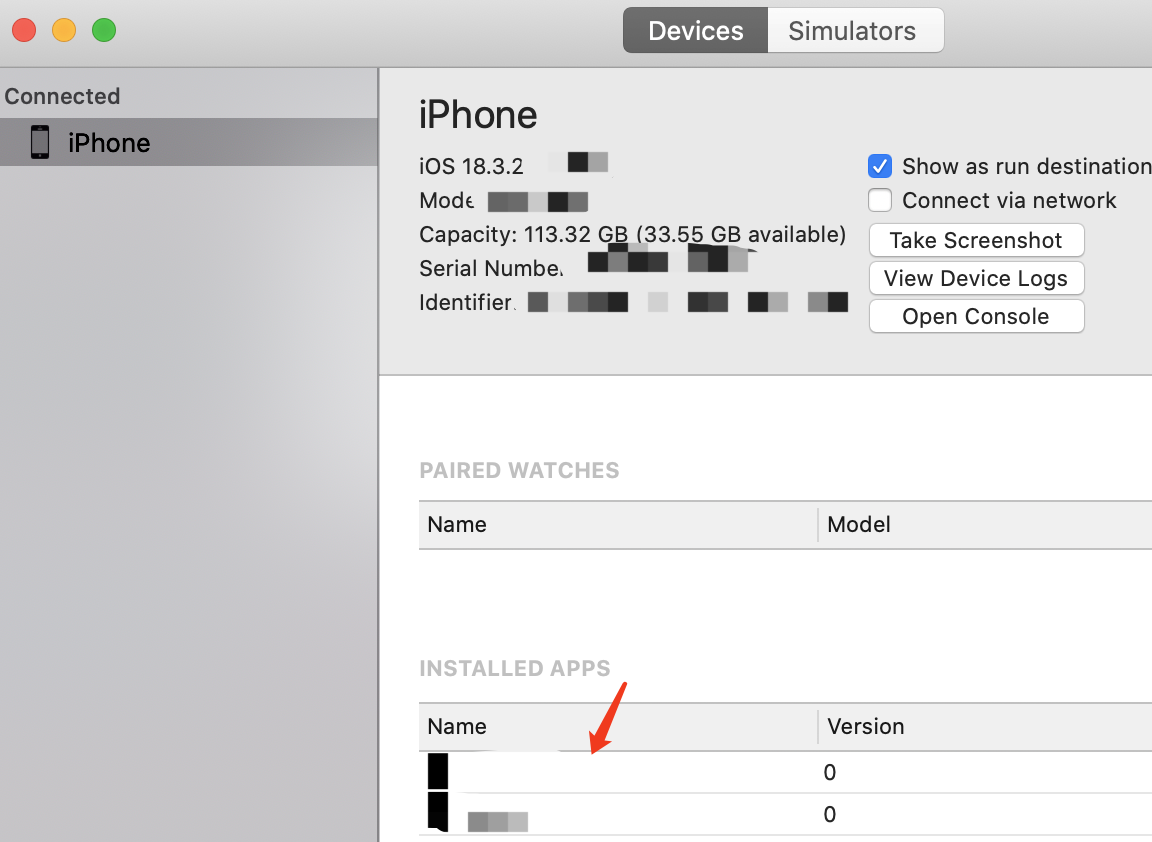
Connect the device to your Mac with a cable. In Xcode, open Window → Devices and Simulators.
Install the protected app
Drag the .app file into the Devices and Simulators window to install it for testing.
Troubleshooting
Keychain access over SSH
When running protection over SSH, Keychain permission issues can prevent the tool from completing. Unlock the login keychain before running protection. The password shown below is a placeholder; avoid exposing actual credentials in shared terminals or logs.
security unlock-keychain -p PASSWORD login.keychainOperation not permitted
If the tool reports Operation not permitted, macOS may be blocking the extracted executable. For a trusted JikGuard package, the documented remedy is to remove the quarantine attribute from the specified tool files, then retry:
sudo xattr -r -d com.apple.quarantine jikguardbuild
sudo xattr -r -d com.apple.quarantine ./JikGuardSdk/bin/macsfecsaadeevevev
Permission denied
Some ZIP extraction tools remove executable permissions. If you see Permission denied, restore execute permission on the documented tool files, then retry:
chmod +x jikguardbuild
chmod +x ./JikGuardSdk/bin/macsfecsaadeevevev