
Windows Protection User Guide
Set up the JikGuard tool, configure DLL protection, protect a Windows Unity game build, and encrypt Unity AssetBundles.
Before you start
Prepare the Java environment, tool files and game directory before protection.
Java and tool files
Install Java. Keep config.ini in the same directory as JikGuard-Windows.jar. See Downloads for tool package information.
Administrator console
Open the Windows console with administrator privileges and navigate to the tool directory.
Paths without spaces
Protection paths must not contain spaces. For example, avoid directories named Program Files when selecting the protection path.
Configure the Protection Tool
Open config.ini in the tool directory and configure the Game Key before running protection.
Game Key
Enter the Game Key supplied for your project. If you do not have one, contact JikGuard support.
[gamekey]
key=YOUR_GAME_KEY
Protect DLL modules (optional)
Specify the DLL modules you want to protect in the [protectdll] section.
[protectdll]
1=UnityPlayer.dll
2=GameAssembly.dll
Note: Adding too many modules may increase the game’s startup time.
Protect Unity Mono DLLs (optional)
For Unity Mono games, specify DLL modules in the Managed directory under [dll].
[dll]
1=Assembly-CSharp.dll
2=Assembly-CSharp-firstpass.dll
Protect a Windows game
Pass the path of the Windows Unity game directory to the tool. Replace the example path with your own game path.
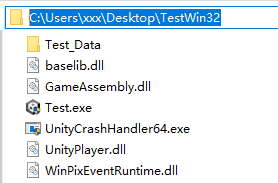
Game directory
For example, use a game directory such as C:\Users\xxx\Desktop\TestWin32.
Command syntax
Replace the input and output placeholders with the corresponding paths. Square brackets indicate an optional argument; do not include the brackets when running the command.
java -jar JikGuard-Windows.jar -autoconfig -inputfile %inputdir% [-outputfile %outputdir%]Example
Enter the command in the administrator console and press Enter.
java -jar JikGuard-Windows.jar -autoconfig -inputfile C:\Users\xxx\Desktop\TestWin32| Option | Usage |
|---|---|
-inputfile | Path to the game directory to protect. |
-outputfile | Optional. Path for the protected game. If omitted, the tool uses its default output path. |
Encrypt Unity AssetBundles
Encrypt Unity AssetBundles using a ZIP archive or the directory that contains the resources.
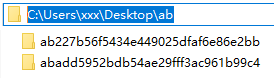
AssetBundle directory
The example below uses C:\Users\xxx\Desktop\ab as an example resource directory.
Command syntax
java -jar JikGuard-Windows.jar -optype_assetbundle_enc -inputfile %inputdir% [-outputfile %outputdir%]Example
Enter the command and press Enter.
java -jar JikGuard-Windows.jar -optype_assetbundle_enc -inputfile C:\Users\xxx\Desktop\ab| Option | Usage |
|---|---|
-inputfile | Path to the AssetBundle ZIP archive or resource directory. |
-outputfile | Optional. Path for the protected resources. If omitted, the tool uses its default output path. |
Usage notes
Sign the protected EXE and DLL files
Sign the protected executable and DLL files yourself to help reduce antivirus false positives.
Need help?
Email [email protected] or contact JikGuard support for assistance.